How-to Guide
Everything you need to know about HomePageCloud in about two minutes. Your links, organized your way, on every device.
In a hurry? Follow the 10-minute setup, which also has sample prompts so Grok Bot can organize your links for you.
1. Getting started
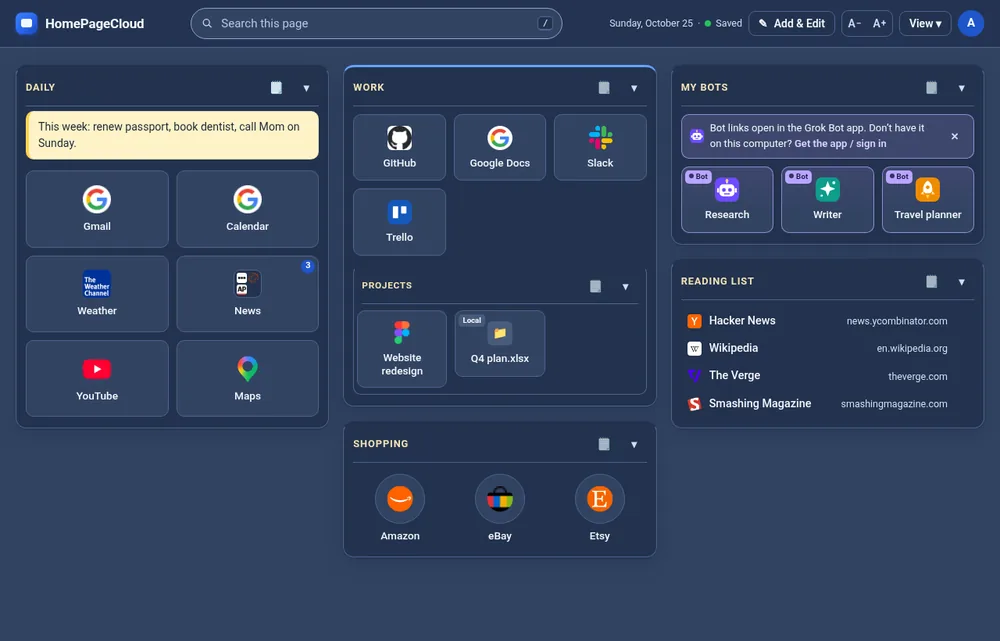
After you sign in, your homepage shows a few starter sections with links. Search sits at the top. Everything saves automatically. Watch for Saved next to the date.
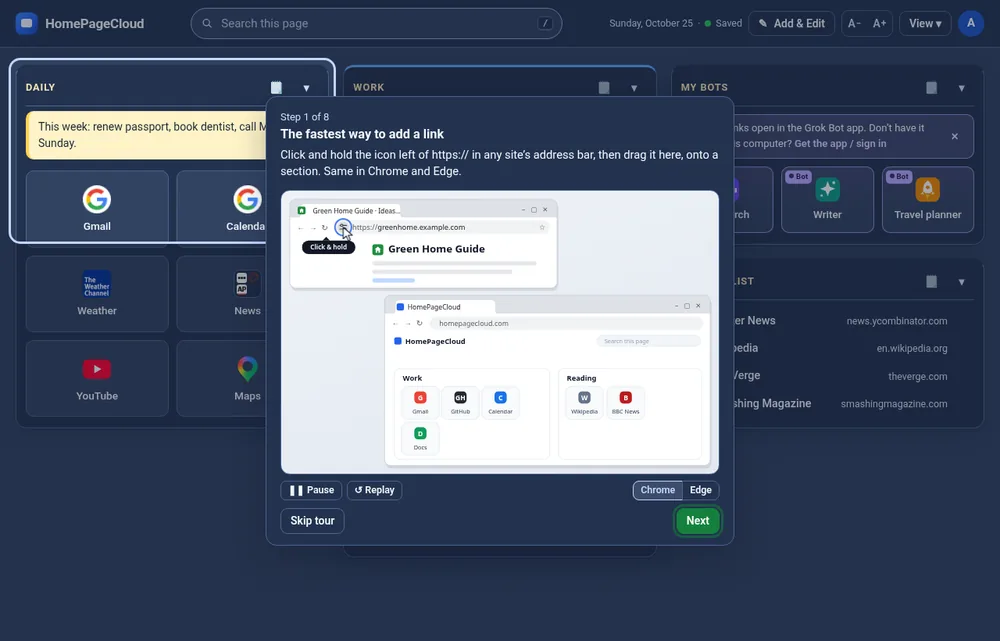
New here? A short tour points out the essentials. You can replay it any time from this page, or from the account menu → Take the quick tour.
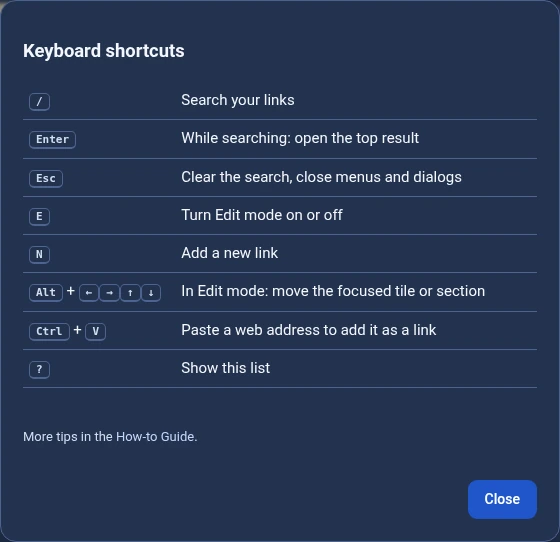
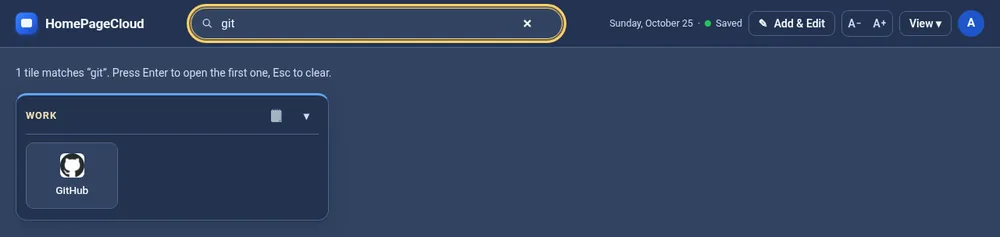
Quick search: press / and type. Matching tiles stay visible, and Enter opens the top result.
2. Sections
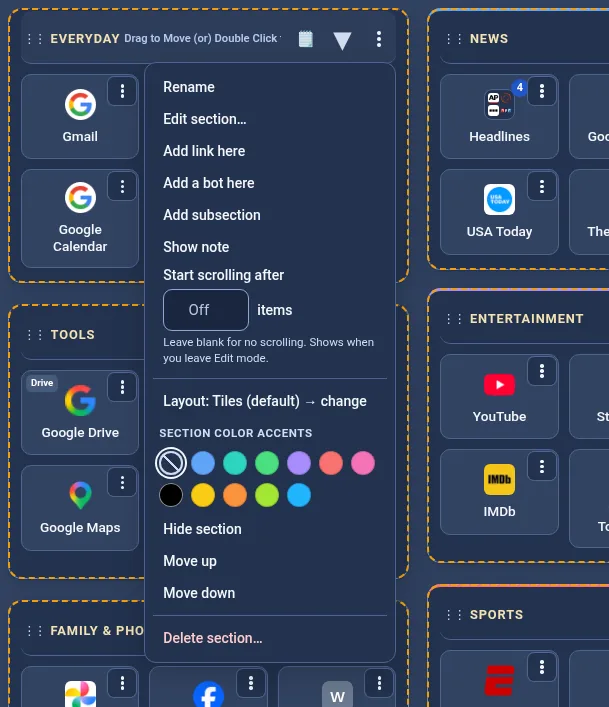
Sections are the boxes that hold your links, like Work, Daily or Shopping. To make one, turn on Add & Edit and click + Section. Put sections inside other sections for sub-topics (up to 3 levels). In Edit mode, each section's ⋮ button opens a menu that lets you rename it, change its layout or color accent, add a note, hide it, move it, or delete it. For a long section, set Start scrolling after ___ items in that menu: it then shows that many links and you scroll for the rest (Edit mode always shows them all). A section can also be a link itself: give it a web address and its title becomes clickable.
3. Adding links
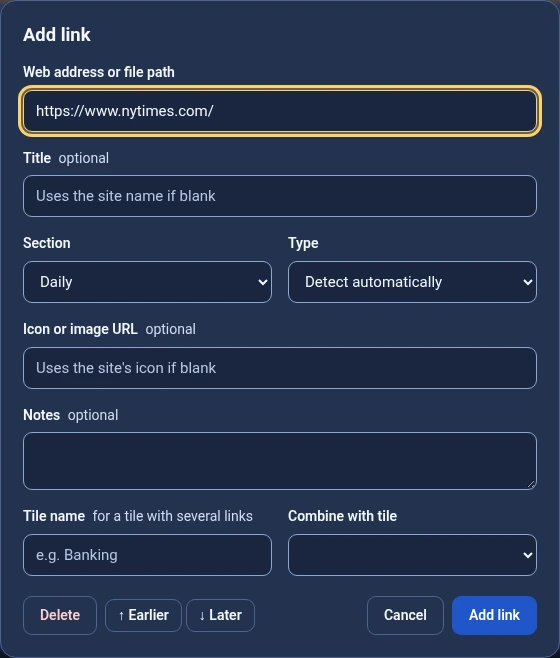
- Type it: Edit → + Link (or press N). Paste the address. The title and icon are filled in for you.
- Drag it: drag a link, or the little icon in your browser's address bar, onto a section. See how.
- Paste it: copy a web address and press Ctrl+V on your homepage.
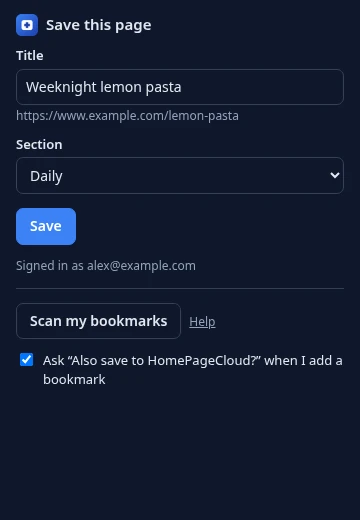
- Browser extension (recommended): click its toolbar button on any page, or right-click a link → Save to HomePageCloud. It also offers to save new bookmarks. How to get it.
- No extension? The ☁ Save button: drag the ☁ Save to HomePageCloud button to your bookmarks bar, where it shows up as ☁ Save. One click saves whatever page you're on. It's in the account menu and on the Save page.
Already saved it? Whichever way you add a link, we'll tell you which section it's in and ask before adding it again.

Drag a site straight from the address bar
The fastest way to save the site you're looking at: grab the small icon to the left of https:// and drop it on your homepage. Put the two windows side by side, or drop onto the HomePageCloud tab and wait a moment for it to open.
- Click and hold the little icon just left of
https://in the address bar of the site you want to save. Chrome: the “View site information” icon. Edge: the padlock. - Drag it onto your HomePageCloud page. Drop it on the section you want. It lights up and says Drop to add to…. Dropping on an empty spot lets you pick the section.
- Let go. The link is saved with its title and icon, and a new tile appears.
It works the same way in Chrome and Edge on Windows and Mac. You can also drag a link from a web page, or a bookmark from your bookmarks bar. Find dragging fiddly? Use the Save button or the optional extension instead. Both save the page you're on in one click.
On phones and tablets, dragging between apps isn't available. Tap Share → Copy in your browser, then paste the link on the Save page.
4. Tiles and groups
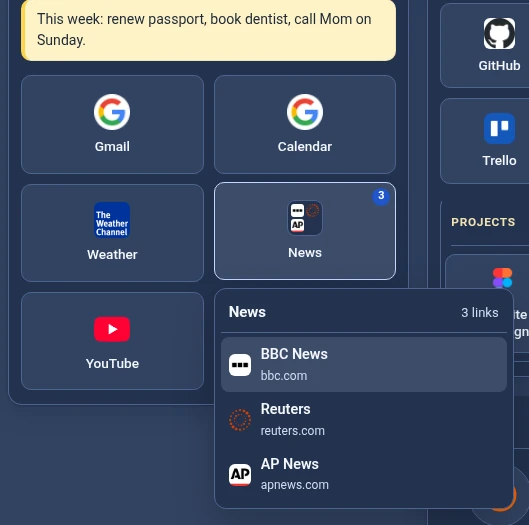
Click a tile to open the site. To group links into one tile (for example several news sites under one “News” tile), turn on Add & Edit and drop one tile onto another. A badge shows how many links the group holds. Click a group to pick one of its links.
Turn on View → Show “Most used” or Show “Recently added” to get handy shortcut rows at the top. Most used is based on click counts that only you can see. You can turn that off in Account → Privacy & usage.
5. Edit mode
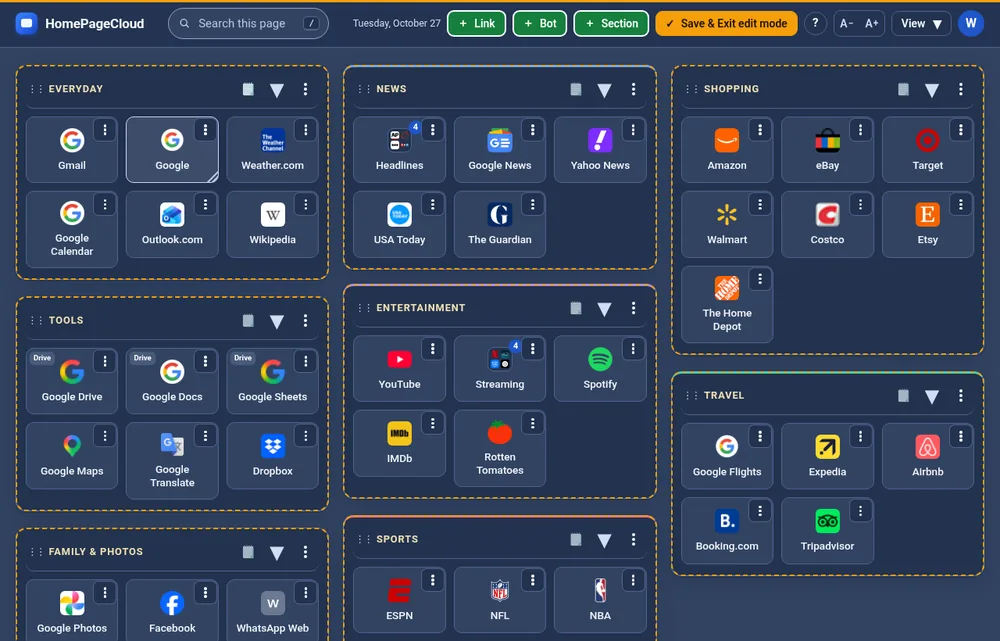
Click ✎ Add & Edit (or press E) to rearrange. Drag a tile to move it. On a section's name bar it says Drag to Move (or) Double Click to Edit: drag the bar (the hand cursor shows where) to move the whole section, or double-click the name to edit it. Its ⋮ button menu has Rename too. Each tile has its own ⋮ too, for editing that link. On phones and tablets, press and hold briefly, then drag. Drag a tile's bottom-right corner to resize all the tiles in a section. While you're in Edit mode, a thin amber line runs across the top of the page and every section gets a dashed amber outline, so you can always tell you're editing. The small round ? next to Save & Exit opens a quick tip, ▶ Watch how, this Guide, the quick tour and Help. Click ✓ Save & Exit edit mode when you're finished (your changes save as you go, so nothing is lost if you forget). Your homepage can't be changed by accident outside Edit mode.
Rearrange sections
- Point at a section's name bar in Edit mode. It turns light blue, the ⋮⋮ dots turn blue and it says Drag to Move (or) Double Click to Edit.
- Press and drag. The section lifts, and a dashed outline shows where it will land.
- Let go. The other sections shift over and the new order is saved. Double-click a name to edit it.
6. Layouts and themes
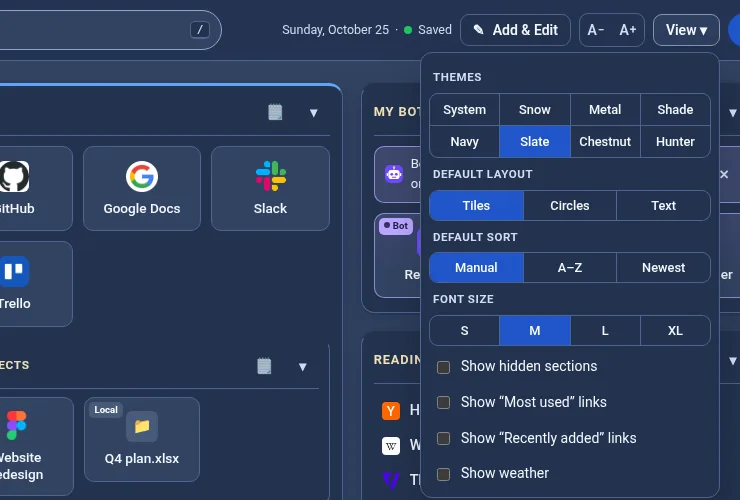
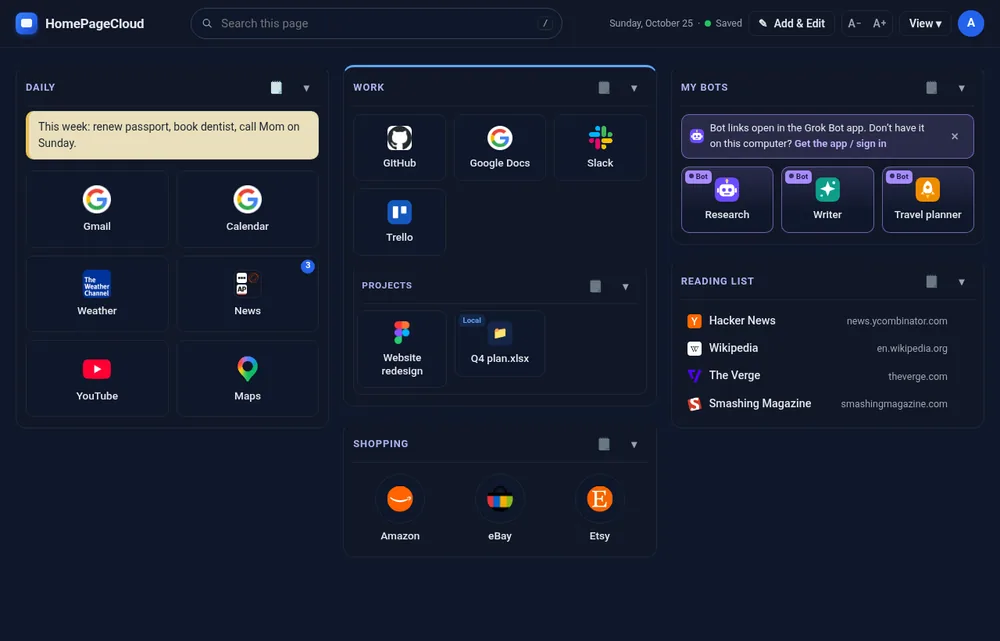
The View menu sets the theme (System, Snow, Metal, Shade, Navy, Slate, Chestnut, Hunter), the default layout (Tiles to start with, or Circles or a compact Text list), sorting, and text size. A− / A+ change the size quickly. Each section can override the layout, or get a colored top trim (Section Color Accents), from its ⋮ menu.
Weather next to the date (optional)
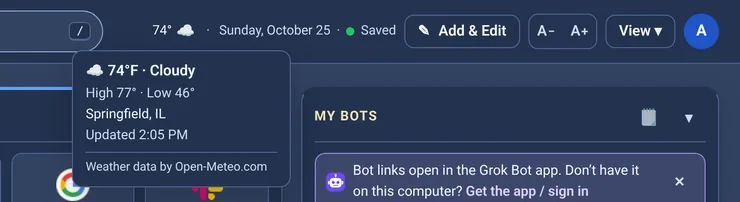
You can show the current temperature and a weather icon just left of the date at the top of your homepage. It's off until you turn it on: open Account settings → Weather, type your city or US ZIP code and press Look up (or click Use my location; your browser asks first), pick °F or °C, check Show the weather on my homepage and press Save. After that, View → Show weather turns it on and off. Point at the temperature (or tap it) to see the conditions, today's high and low, the place and when it was last updated. It refreshes about every 30 minutes; if the weather can't be loaded it simply stays hidden. On a phone only the temperature shows when space is tight. Your browser never contacts a weather service; our server looks it up for your place (see the privacy policy). Weather data by Open-Meteo.com (CC BY 4.0).
7. Notes
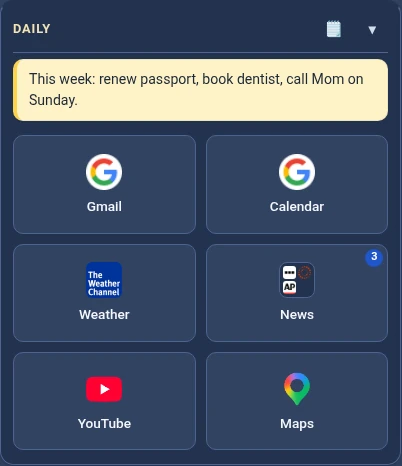
Every section can have a sticky note for reminders, to-dos or phone numbers. Click the 🗒 icon in the section header. Type, and it saves itself. You can pick a color or hide the note.
8. Bots
Add Grok Bots as tiles: Edit → + Bot, paste the bot's link (grokbot://…) or id, and pick an icon. Clicking a bot opens it in the Grok Bot app. More about bots.

9. Importing bookmarks
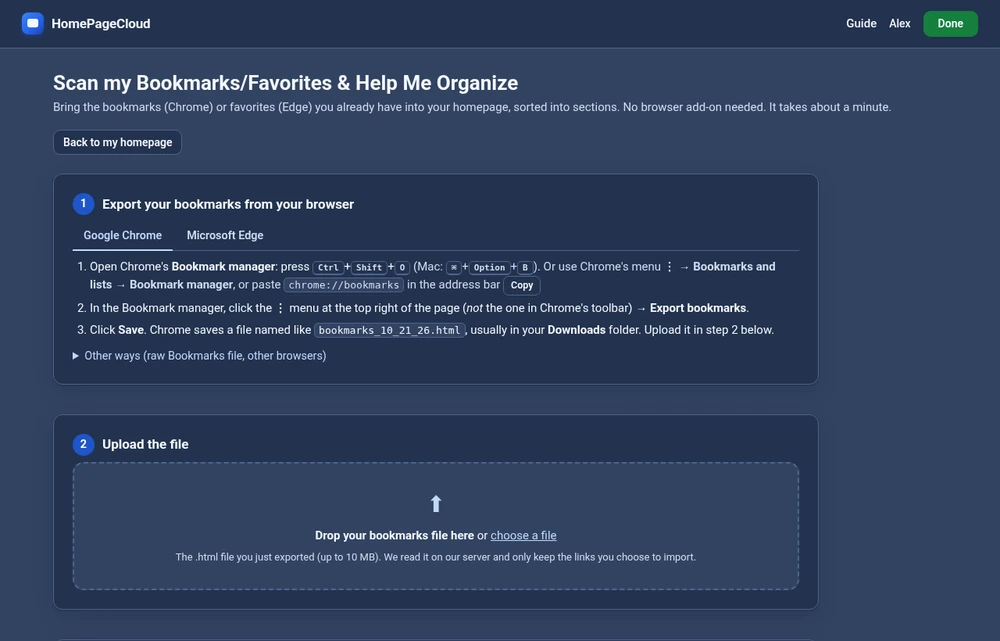
Bring in everything you already have. Export your bookmarks from Chrome or Edge, then use Import bookmarks in the account menu. You'll review suggested sections before anything is added. Duplicates are skipped, and you can undo an import with one click.
Paste a list: on the same page, paste a list of links, one per line, like Work: GitHub - https://github.com. This is handy for lists from a document or from Grok Bot (see how to use Grok Bot, with sample prompts). It gets the same preview and one-click undo.
10. Backup & restore
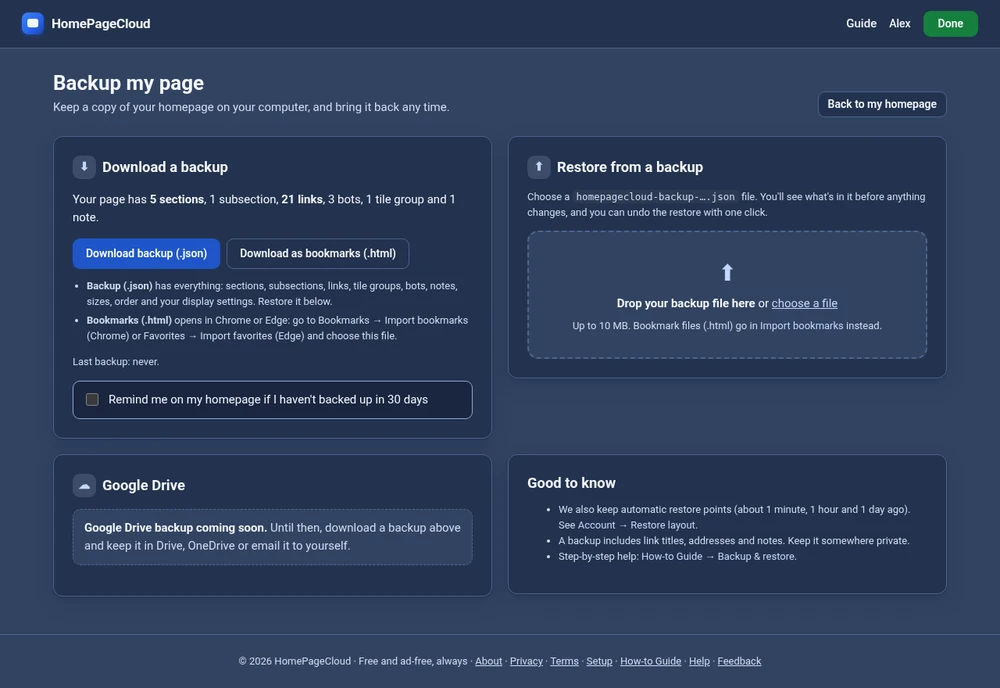
Account menu → Backup my page.
- Download a backup: one click saves a complete copy of your sections, links, groups, bots, notes, sizes and settings as a small file. Keep it on your computer, in Google Drive or OneDrive, or in your email.
- Bookmarks file: also download your links as a standard bookmarks file that any browser can import.
- Restore: choose a backup file. You'll see what's in it first, then pick Replace (your page becomes exactly the backup) or Merge (only missing links are added). Either way, you can undo with one click.
- A gentle reminder appears if you haven't backed up in 30 days. You can turn it off on the Backup page.
11. How to make HomePageCloud your homepage
Two quick settings and your links greet you every time you click Home or open the browser. Websites aren't allowed to open browser settings pages for you, so copy each address below, paste it into the address bar and press Enter.
In Chrome
- Open the Settings & Appearance page: copy this address, paste it into the address bar and press Enter.
chrome://settings/appearance
- Then toggle the Show Home button switch on the right to the On position, select the second option (the custom web address box), and copy and paste your HomePageCloud address into the field as shown.
https://homepagecloud.com/dashboard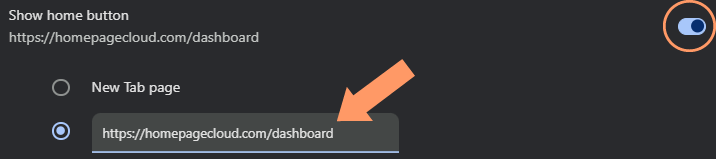
- Optional, recommended: to open HomePageCloud when Chrome starts, go to
chrome://settings/onStartupchoose Open a specific page or set of pages → Add a new page, paste the same address and click Add.
In Edge
- Open the Start, home, and new tab page settings (called Start, home, and new tabs in some versions): copy this address, paste it into the address bar and press Enter.
edge://settings/startHomeNTP - Under Home button, toggle Show home button on the toolbar to On, choose Enter URL, paste your HomePageCloud address and click Save.
https://homepagecloud.com/dashboard - Optional, recommended: on the same page, under When Edge starts, choose Open these pages → Add a new page, paste the same address and click Add.
On a phone or tablet
Phone browsers mostly don't let you choose a page to open when they start. Instead, add HomePageCloud to your home screen so your links are one tap away: on an iPhone or iPad (Safari) tap Share → Add to Home Screen; on Android (Chrome) tap the menu ⋮ → Add to Home screen.
Not signed in? That address takes you to sign in first, then straight to your homepage. Prefer a guided version? Account menu → Make this my browser homepage… (on phones: Add to home screen…) walks you through it. On a work computer these settings may be locked by your IT team.
12. Links to files on your computer
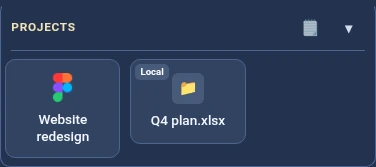
You can save links to files and folders, such as C:\Users\You\Documents\Budget.xlsx. Browsers don't let websites open local files directly, so these tiles are marked Local. Clicking one copies the path, which you then paste into File Explorer. Details.
13. Phones, tablets and other computers
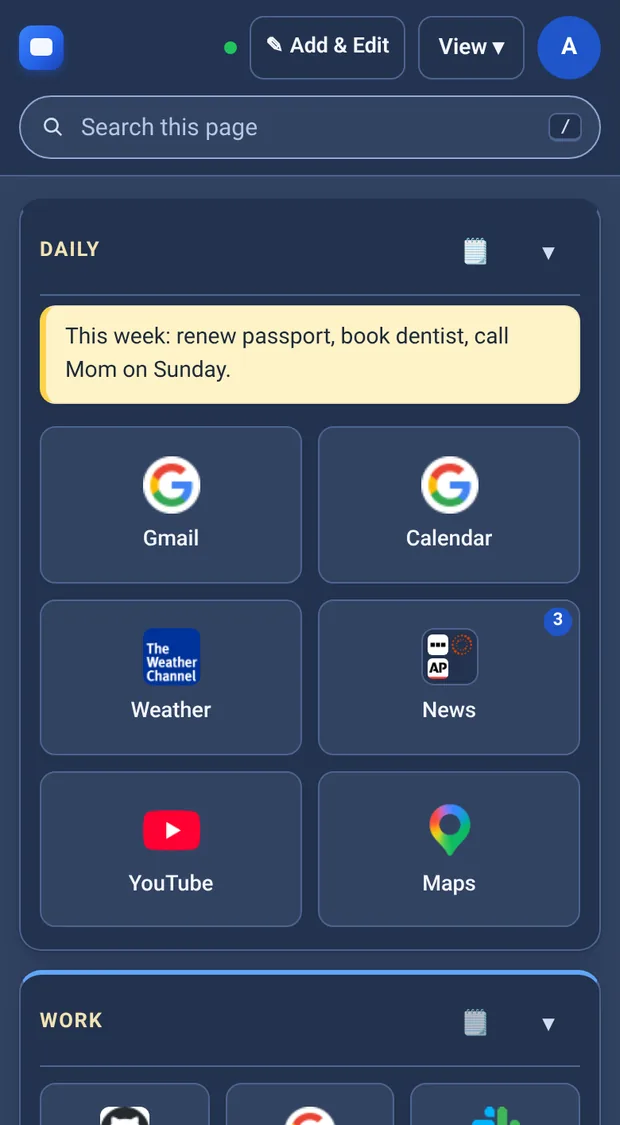
Sign in anywhere and you get the same homepage. Changes save to your account right away. If you change something on another device, an “Updated on another device” note offers to refresh.
14. Keyboard shortcuts
Press ? on your homepage for the full list.